
How to install
Setup takes about 10 minutes. You only do it once.
Follow the steps in order and tick each one off when you see the “done” message. Phone makers name their settings differently, so if a menu has another name on your phone, use the search bar at the top of Settings.
[SETUP VIDEO: REPLACE THIS LINE WITH A VIDEO BLOCK, OR DELETE IT]
Step 0. Install the app
- On your phone, download the APK file from [DOWNLOAD LINK].
- Open the file. If Android says it cannot install from this source, tap Settings, allow your browser or Files app to install apps, then go back and tap Install.
- If Google Play Protect shows a warning because the app is not from the Play Store, choose to install anyway. [CHECK THE EXACT WORDING ON YOUR PHONE AND ADJUST.]
- Open Umer OS.
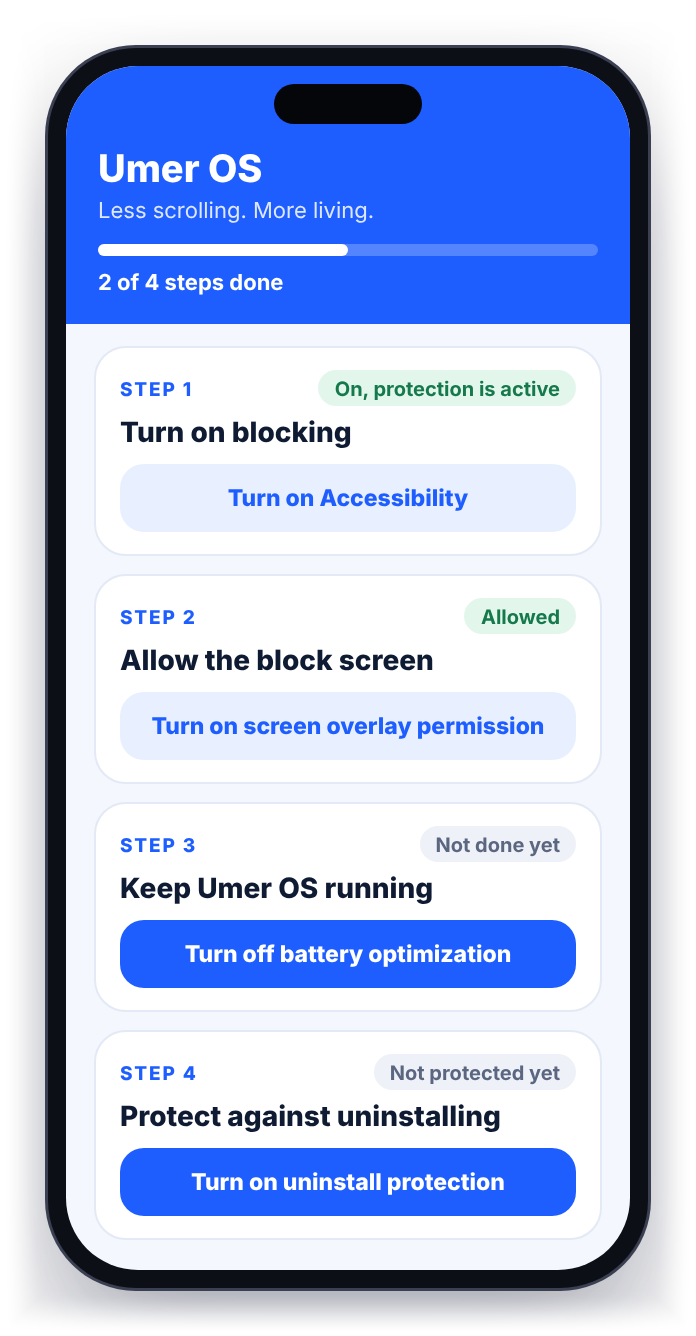
You are done when the Umer OS main screen opens.
Step 1. Activate your licence
- In the app, tap Copy to copy your Device ID, or tap Send to send it to us directly.
- Pay and send us the Device ID as described on the Get Umer OS page.
- When we reply with your key, paste it into the licence box and tap Activate.
You are done when the app shows that your licence is active.
Step 2. Turn on blocking (Accessibility)
This is the card called Turn on blocking.
- Tap Turn on Accessibility.
- In the list, find Umer OS (it may be under Installed apps or Downloaded apps).
- Switch it On and confirm.
Why Accessibility? Android lets this permission see which app or screen is open. Umer OS uses it only for that, to send you home from blocked screens. It keeps nothing, and it has no internet permission to send anything with. Read the details and check it yourself.
If the switch is greyed out, or says “Restricted setting” (normal on Android 13 and newer for apps not installed from the Play Store), fix it once:
- Tap Turn on Accessibility and try the switch once.
- Come back and tap Open app settings.
- Tap the three dots in the top-right corner.
- Tap Allow restricted settings and confirm.
- Go back and tap Turn on Accessibility again, then switch Umer OS on.
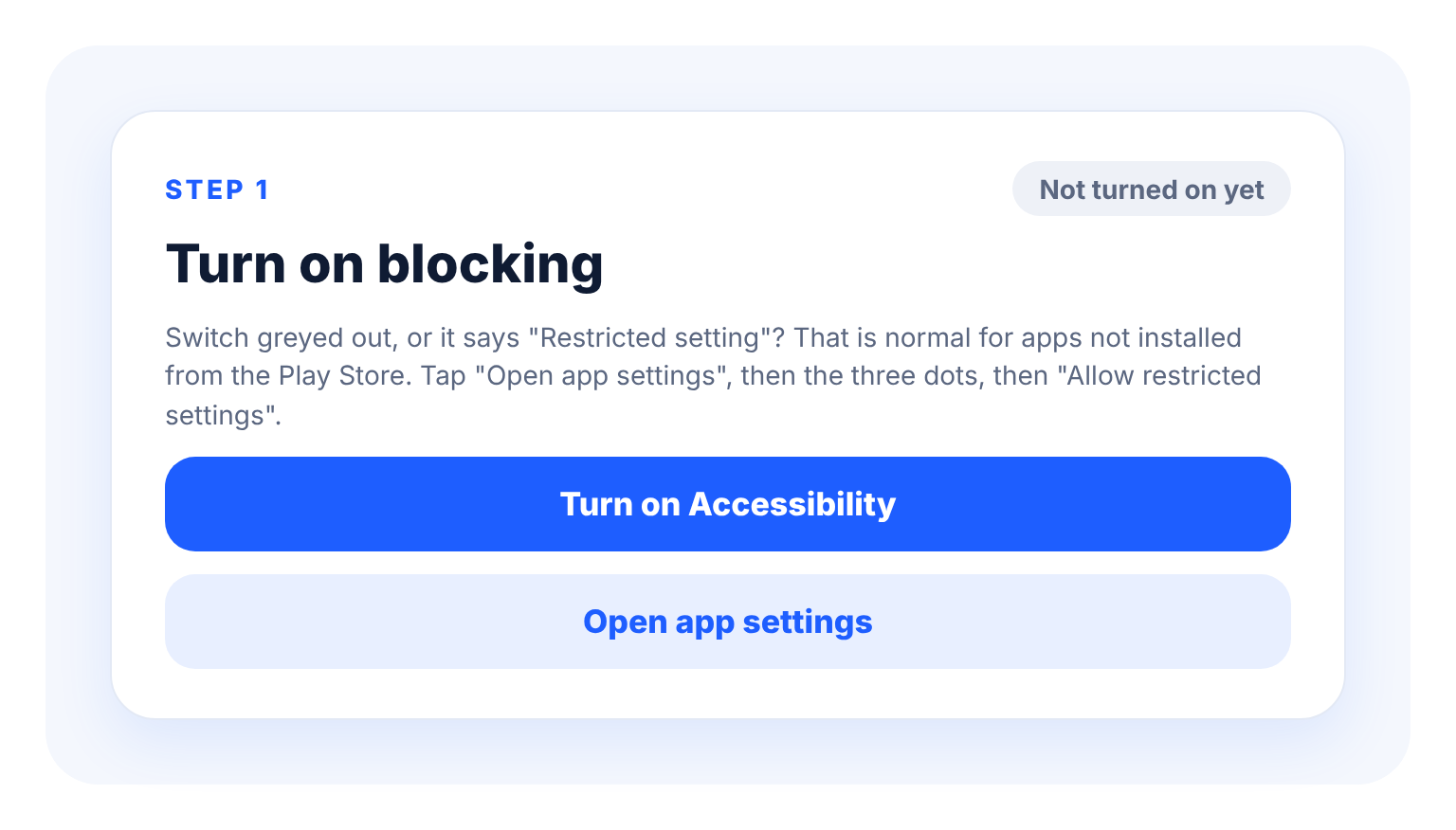
You are done when the card says “On, protection is active”.
Step 3. Allow the block screen
This is the card called Allow the block screen.
- Tap Turn on screen overlay permission.
- Switch on Allow display over other apps for Umer OS.
Without this, blocking still works, but with a simpler screen and no password gate.
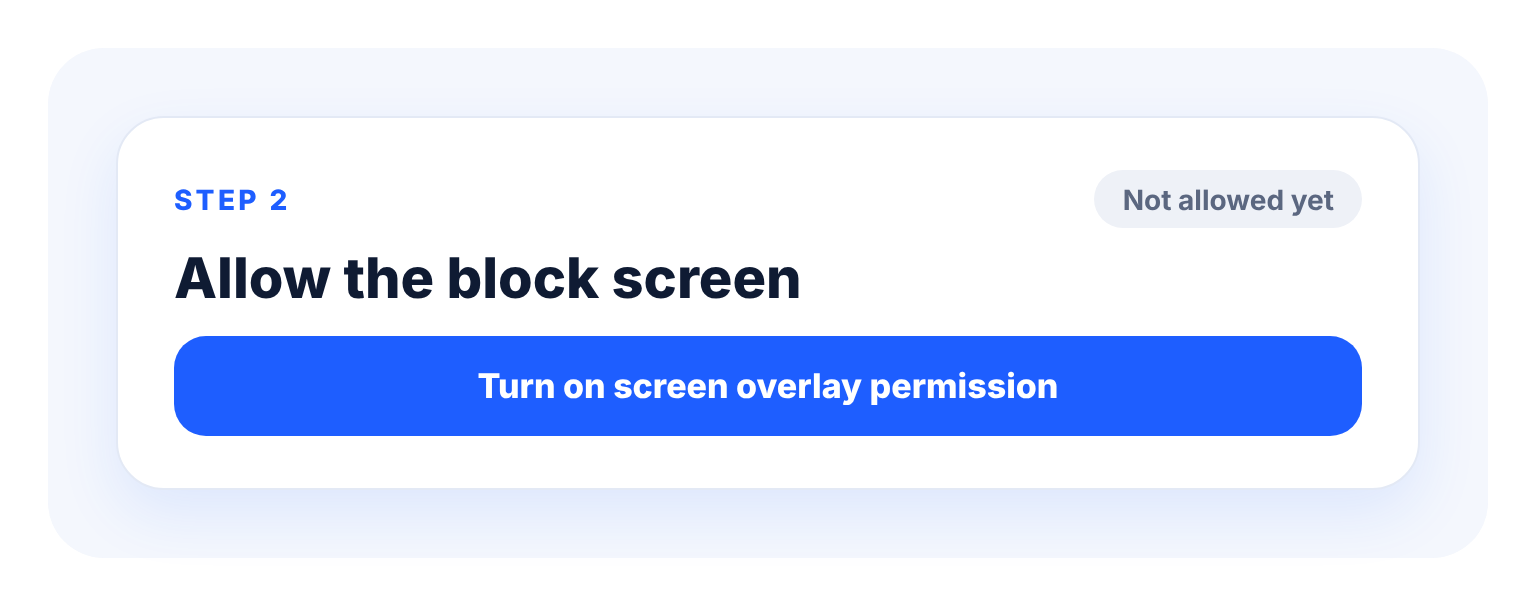
You are done when the card says “Allowed”.
Step 4. Keep Umer OS running
This is the card called Keep Umer OS running. Some phones (Xiaomi, Oppo, Infinix, Tecno and others) stop background apps aggressively. This step is what keeps protection on after a restart.
- Tap Turn off battery optimization for this app and choose Allow.
- Tap Open this phone’s autostart / background settings and allow Umer OS to start automatically and run in the background.
- Open the recent-apps screen and, if your phone offers a lock icon on the Umer OS card, tap it.
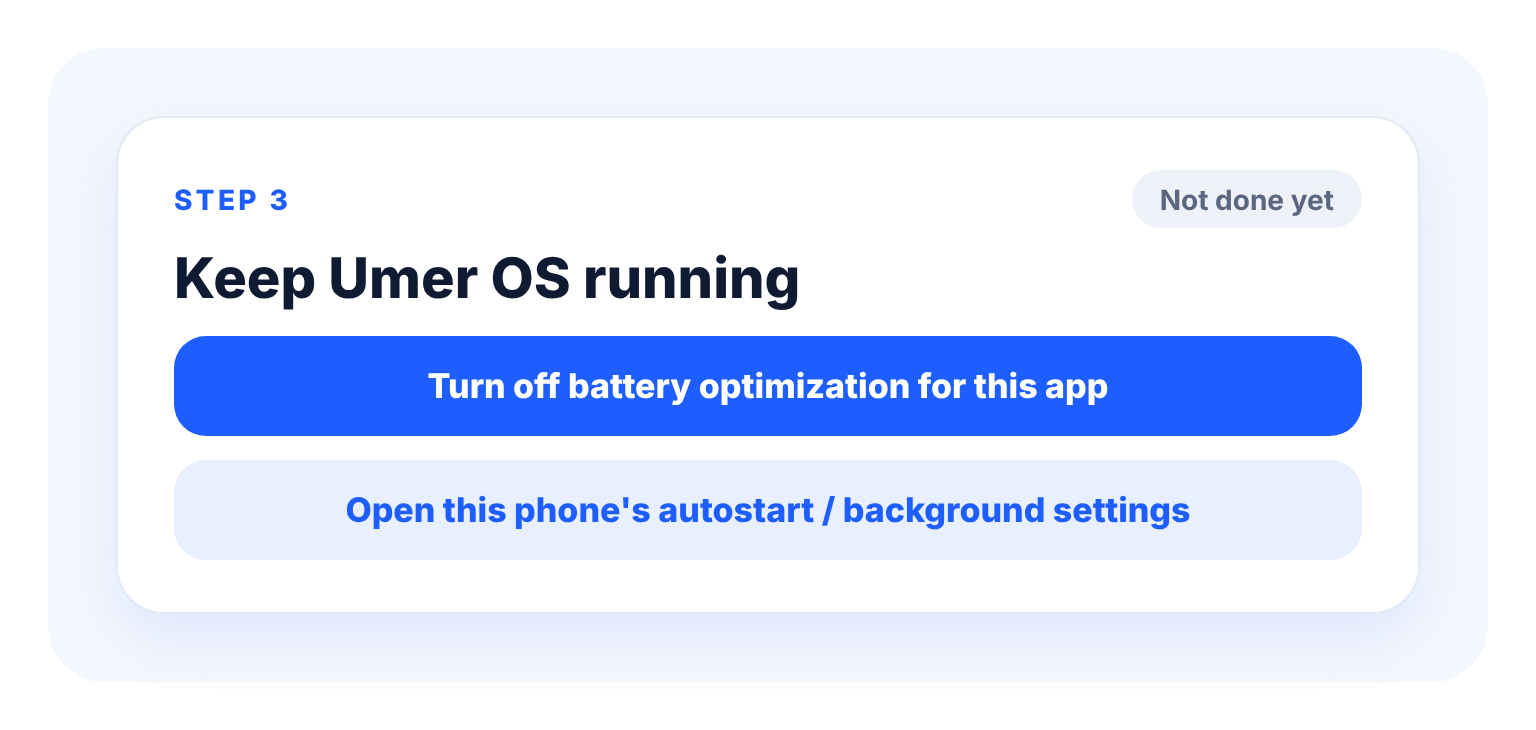
You are done when the card says “Done”.
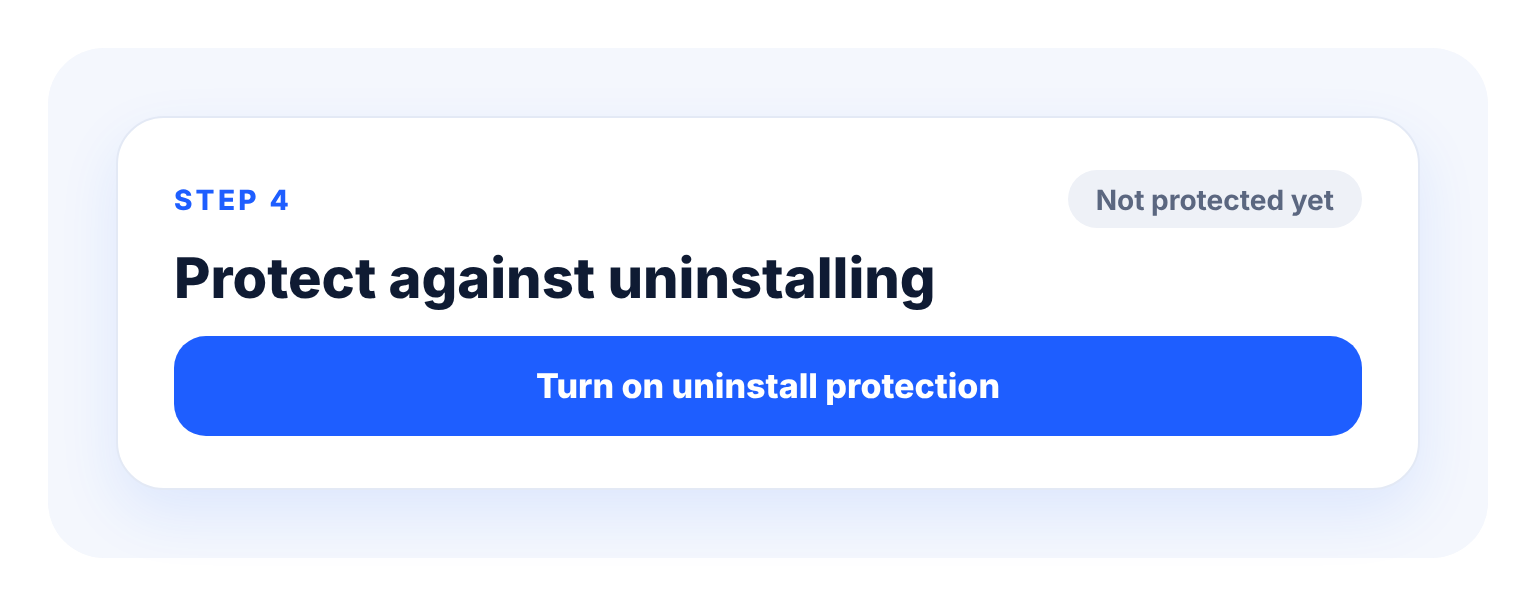
Step 5. Protect against uninstalling
This is the card called Protect against uninstalling.
- Tap Turn on uninstall protection and activate the device-admin request. It asks for no powers over your phone: it only makes Android ask for your password before Umer OS can be removed.
- Set your unlock method: choose your own password, tap Generate strong password, or choose a company code or an accountability partner’s code if you want Hard mode. [CONFIRM THE SCREEN WORDING IN THE APP.]
- Store the password where you cannot easily reach it, for example with your partner.
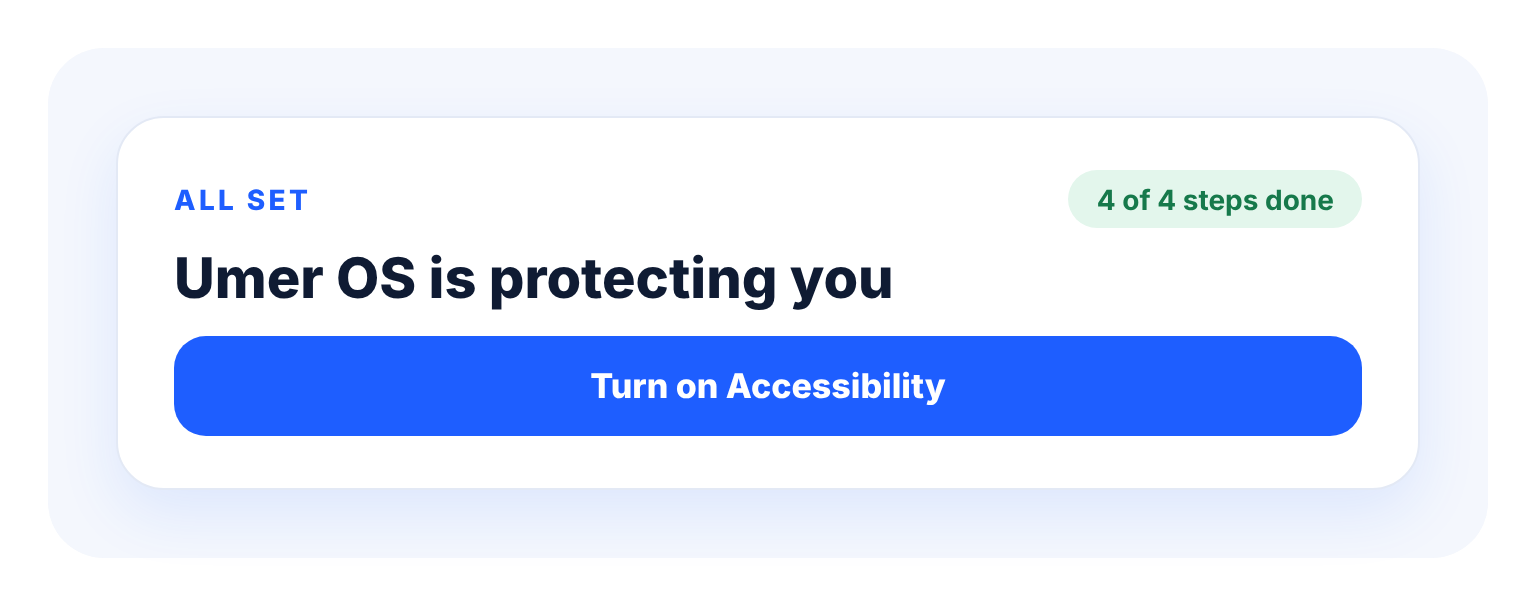
You are done when the card says “Protected” and the main screen shows “All set. Umer OS is protecting you.” (4 of 4 steps).
Step 6. Make Umer OS your home screen
- In the Tools section, tap Home.
- Choose Umer OS and tap Always.
- Press the home button to check that the Umer OS home screen appears. Long-press the clock or use the style button to pick one of the five looks.
You are done when pressing the home button shows the Umer OS home screen.
Step 7. Optional extras
Each of these appears the first time you use the feature, so you can also do them later.
- Focus. Tap Focus, then Allow, and switch Umer OS on under Do Not Disturb access. Choose the call-screening app when Android asks, then pick the contacts who may reach you during Focus.
- Steps. Tap the steps line on the home screen once and allow Physical activity.
- Notifications. Allow them so Umer OS can warn you if protection is switched off.
- Recent Gallery. Allow photo access if you want the recent-photos gallery.
Step 8. Test it
- Open WhatsApp and tap Updates. You should be sent home with a short message.
- Open a blocked app. You should be sent home or shown the block screen.
- Restart the phone and check that the “Protection is active” notification returns.
- If the app shows a warning that USB debugging is on, turn it off in Developer options so nobody can switch protection off from a computer.
You are done when all four checks behave as described.
If something goes wrong
- The Accessibility switch is greyed out. Follow the “Restricted setting” fix in Step 2.
- Protection stopped after a while or after a restart. Redo Step 4, and tap the notification that asks you to turn Accessibility back on. Android does not let any app switch it on by itself.
- “Key not matching”. The phone has an older app than the key was made for. Install the latest APK and try again.
- “App is not finished”. That copy was built without our key. Download the official file from this site.
- Blocking works but there is no password screen. The overlay permission in Step 3 is off.
- Still stuck? Send us a message with your phone model and Android version.
Help for your phone brand
Settings are named differently on each brand and Android version. If you cannot find a menu below, open Settings and use the search bar to look for “autostart”, “battery” or “background”. [CHECK THESE MENU NAMES ON A REAL PHONE OF EACH BRAND BEFORE LAUNCH.]
Samsung
Look under Settings > Battery (or Device care) > Background usage limits, and make sure Umer OS is not in the sleeping or deep-sleeping lists. In recent apps, tap the Umer OS icon and choose “Keep open”.
Xiaomi, Redmi and Poco
Look under Settings > Apps > Manage apps > Umer OS: switch on Autostart, and set Battery saver to “No restrictions”. In recent apps, press and hold the Umer OS card and tap the lock icon.
Oppo, Realme and OnePlus
Look under Settings > Battery, and Settings > Apps > App management > Umer OS: allow Auto-launch and background activity, and turn off battery optimisation. Lock the card in recent apps if the option is shown.
Infinix and Tecno
Look for the phone’s battery or “Phone Master” settings: allow Umer OS to autostart, run in the background, and remove it from any battery-saving or cleanup list.
Pixel and other phones
Look under Settings > Apps > Umer OS > App battery usage, and choose Unrestricted. Then check Settings > Apps > Special app access for anything related to Umer OS.
Need a hand?
Most problems are one permission switched off. Tell us your phone model, your Android version and which step you are stuck on, and we will help.